Faster Downloads
There are several features in GetRight to help you get the fastest downloads possible.
- Mirrors
- Mirrors are other server computers on the Internet with the same file as the one you want. One server might be in the same city as you while another is on the other side of the Earth. The one near you is usually faster than the one 1000s of miles away!
By doing some automatic speed-checking and switching servers if needed,
GetRight can help you get a much faster download speed.
- Acceleration
- Acceleration lets GetRight download different parts of the same file at the same time. Some pieces may come from one server, while other pieces could come from somewhere else. GetRight puts all the pieces together into a complete file, no matter where it downloaded each part. If each of the servers is limiting the speed at which you can download (and many do), this can make a big improvement!
Finding Mirrors
- Adding Mirrors Manually.
- If the web page where you find a file to download lists several places to download, if you just click several--or all--GetRight will automatically add them as mirrors for one download.
- Searching for Mirrors.
-
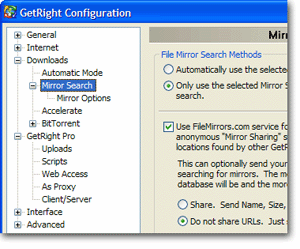
Another easy way to find mirrors is to turn on GetRight's FindFiles.com searching.
When a web page lists several places to download, different people will click on different locations for the same file. With the FindFiles.com service enabled, GetRight shares and can find these different URLs to add mirrors for your downloads.
To enable the FindFiles.com searching, use the "Downloads--Mirror Search" configuration page in GetRight. When you choose to use this service, you can of course decide whether or not to share URLs.
Checking For the Fastest Mirror
It will do it automatically, but you can also tell GetRight to recalculate the fastest yourself. Press the Options button (see picture below) when a file is downloading, and pick the "Recalculate Speeds" item in the menu. Note that the menu item will not be shown if there is only one server--you may want to pick the "Search for Alternates" menu in this case!
Accelerating Downloads
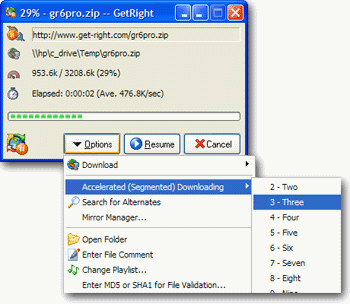
Depending on your Internet connection, this can dramatically improve the download speed. GetRight allows up to ten Segments, so with the right conditions, downloads can be up to ten times as fast as regular downloading!
The results of Accelerated downloading will vary depending on your Internet connection, and a variety of other factors. But if you are not reaching the maximum possible download speed for your Internet connection, this acceleration can really help a lot.
To tell GetRight to use Acceleration when downloading a file, press the Options button when a file is downloading, and pick the "Accelerate Downloading" item in the menu, then the number of Segments to use!
It does limit to four connections for each server, so to get to the maximum of 10, you will need some Mirrors too.
You can even set GetRight to Accelerate automatically. On the configuration window shown above, the "Downloads--Accelerate" page has several choices to speed up your downloads!
